Advanced Figma Settings
Auto-detect link addresses and footers from your Figma file, or skip the footer entirely - the Advanced Options in the Carvr plugin.
Part 4 of 6 - watch all the tutorials in a row.
Click the gear icon in the plugin header to open Advanced Options. Everything here is off by default (Hide Footer Section starts ticked for brands that use Auto-add HTML footer, see below). The two auto-detect settings are the ones that turn the plugin into a true one-click tool: with both on, you select your frame, click Send, and the link addresses and footer come straight from your Figma file.
- Auto-detect link addresses - read prototype links off your buttons
- Live text blocks - send text-only sections as editable Klaviyo or Omnisend text (own guide)
- Auto-detect footer - keep the footer as one clean section
- Hide Footer Section - leave the footer out of the upload altogether
- Keep GIFs animated - send an animated GIF as a GIF, in a row of its own
Auto-Detect Link Addresses
Most emails don't have one link, they have several. Instead of fixing links in Klaviyo after every upload, your designer puts them on the buttons in Figma with a Prototype interaction, and the plugin reads them off the frame. With the setting on, selecting a frame shows "4 links found" (or however many) with a Show button that lists each one - click any to test it, and a broken URL is flagged right there.
How to Add Links in Figma
Select your CTA button layer
In your email design frame, click the button or element you want to be clickable in the final email. Any element works, not just buttons.
Open the Prototype tab
In Figma's right sidebar, switch from Design to Prototype.
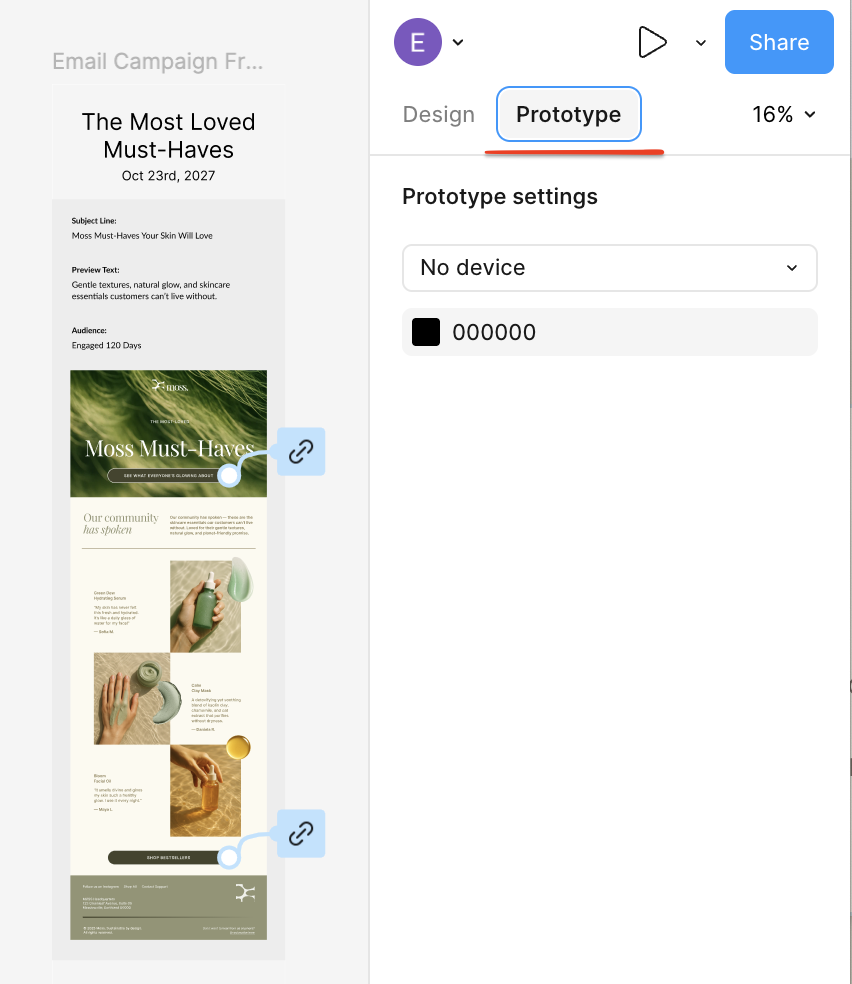
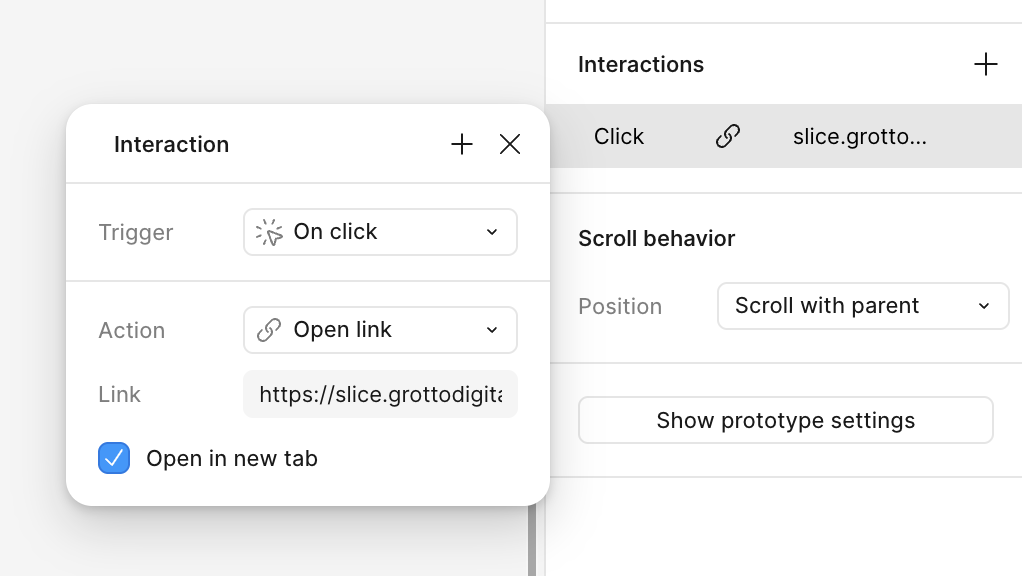
Add an "On Click → Open Link" interaction
Click the + next to "Interactions" and set:
- Trigger: On Click
- Action: Open Link
- URL: your destination (e.g.
https://yoursite.com/summer-sale)
Repeat for every call to action
Give each button that should go somewhere different its own interaction. When you send, the plugin sets each section's link to the call to action inside it.
Select the outer frame, and make it a frame
Two things trip people up. First, the plugin only finds links (and the footer) when the outer email frame is selected - select a single button or the footer group and it reports nothing found. Second, that outer container must be a frame, not a group: Figma doesn't show "Add interaction" on groups, so convert the group to a frame if the option is missing.
How link mapping works
Links are assigned by vertical position. Each link covers its own section and every section above it, up to the previous link. So if the whole email should go to one place, a single interaction on the lowest button covers everything. Sections with no link above them use the brand's website URL.
With the setting off, the CTA Link field comes back and every section gets the single link you type there. Either way works - pick whichever fits how your designers already build files.
Auto-Detect Footer
The slicer sometimes puts a cut inside a footer, which means deleting two or three images in Klaviyo before dragging in your universal footer. With this on, the plugin finds your footer and exports it as a single image, and selecting the frame shows "Footer detected" with a check mark. One image to delete, then drop your saved footer in its place.
How to set up in Figma
Name the group or frame that holds your footer content "Footer". Casing doesn't matter and the name can include other words - the plugin looks for any layer whose name contains "footer".
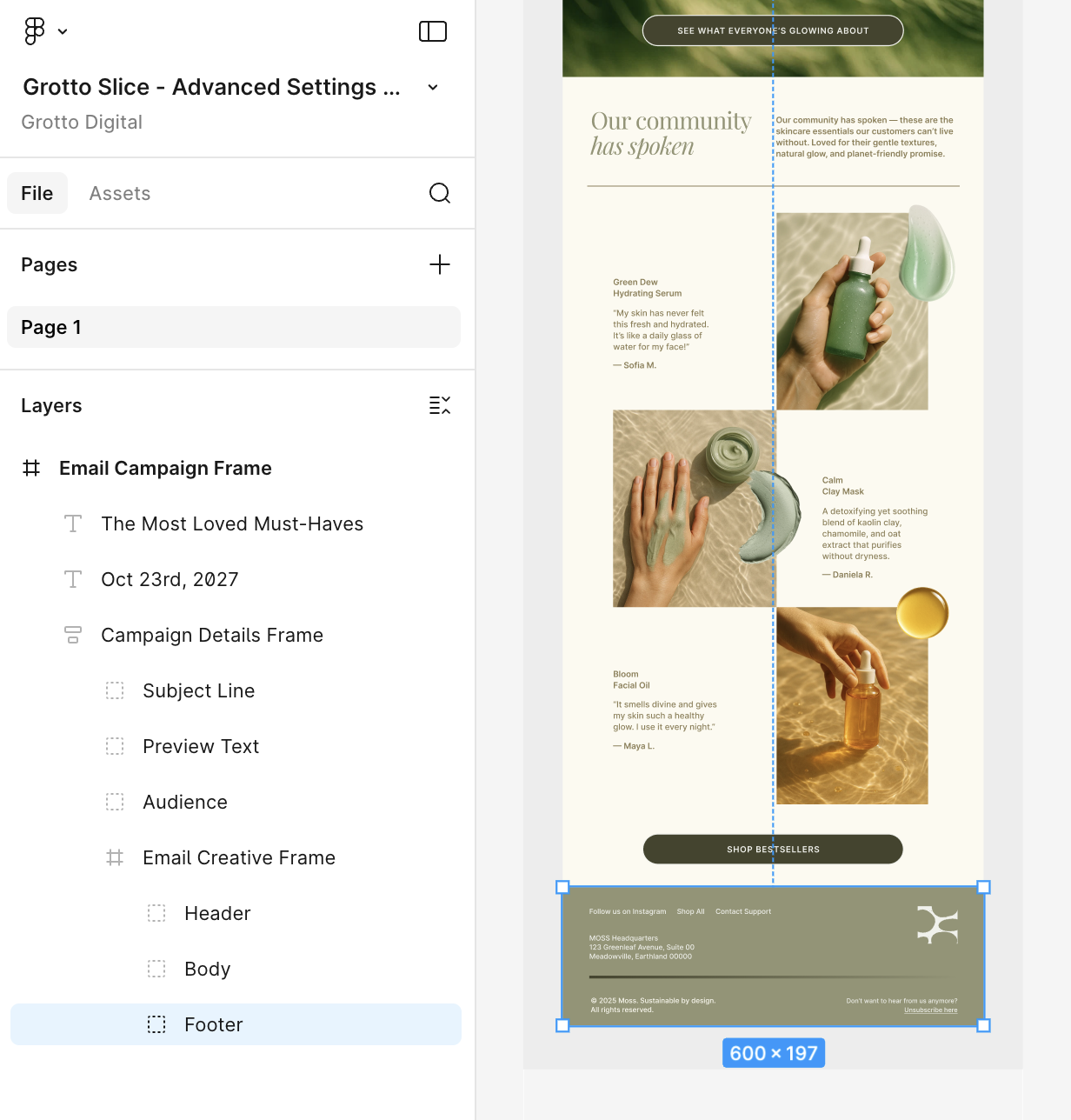
- The footer layer must be inside the email frame you select, not a sibling
- Groups, frames, components, and instances all count
- If several layers match, the plugin uses the largest one
- The cut goes at the footer's top edge; everything below it is one section
Many agencies already organize layers this way. If yours doesn't, it's a five-second habit that makes every upload cleaner.
Hide Footer Section
Appears once Auto-detect footer is on. Instead of exporting the footer as its own image, the plugin leaves it out of the template entirely - the email arrives in Klaviyo ending at the last content section, ready for you to drag in your universal footer with nothing to delete first. Use it when every email for the brand ends with the same saved footer.
The cut sits exactly on the top edge of your footer layer, so only the footer is left out - the padding and spacing above it still ship as part of the last content section.
If the brand uses Auto-add HTML footer, Hide Footer Section starts ticked, because Carvr adds your live HTML footer instead.
Keep GIFs animated
Drag an animated .gif into your email frame and Carvr sends it to your ESP as a GIF, in a row of its own with no slice lines through it. The rest of the email is sliced as usual. Carvr finds a GIF by its file, not the layer name, so a layer called "sale-banner 1" works as well as one called "GIF". It's off by default: turn it on in Advanced Options.
How to add a GIF in Figma
- Drag the .gif file from your computer into the frame, or use Place image. A GIF pasted from a browser often arrives as a still.
- Make it with anything that exports a .gif: Figma's own Motion, or the free LottieFiles plugin, which places the GIF on the canvas for you.
- Keep it under 5 MB: that's the most Carvr sends as a GIF, on every ESP.
- Make the first frame work on its own: Outlook for Windows only shows that one.
When a GIF is uploaded as an image
The checklist tells you before you send: click See more for each GIF's size, what keeps it still and how to fix it. It happens when:
- Something sits on top of it, like text or a button. Build the words into the GIF instead.
- It's rotated, flipped, tiled or masked, or has an image adjustment, opacity or blur.
- It has see-through pixels.
- Two GIFs share a row. The bigger one animates.
- It's over 5 MB even at 600 px wide.
In the web editor a GIF row is labelled GIF, and its slice lines stay where they are, so Update template keeps it animated. To move them, send the email again from the plugin.
Frequently Asked Questions
Can I use prototype links instead of a single CTA?
Yes. Turn on "Auto-detect link addresses" in Advanced Options. Add On Click → Open Link prototype interactions to your buttons in Figma, and the plugin maps each link to the email section that contains it. Sections without a link use the brand's website URL. The CTA Link field is hidden while this setting is on.
Why aren't my prototype interactions showing up?
Select the outer email frame, not a layer inside it - the plugin only reads links when the whole frame is selected. Also, the outermost container must be a frame, not a group: Figma's Prototype tab doesn't offer "Add interaction" on groups.
Does the footer group need to be a specific size?
No. Name the group or frame anything containing "footer" (any casing) and the plugin keeps everything from its top edge down as one section. If several layers match, the largest one wins.
What does "Hide Footer Section" do?
It leaves the detected footer out of the upload entirely, so there is no footer image to delete in Klaviyo before you drag in your universal footer. It only appears once Auto-detect footer is on. If the brand uses Auto-add HTML footer, it starts ticked, because Carvr adds your HTML footer instead.
Can Carvr send animated GIFs?
Yes. Drag the .gif file into your Figma frame and Carvr sends it as a GIF, in a row of its own with no slice lines through it. Turn on Keep GIFs animated in Advanced Options first. Carvr finds GIFs by the file, whatever the layer is called.
Which tools can I use to make a GIF for Carvr?
Anything that makes a .gif file: Figma's own Motion (export as GIF, then drag the file into your frame), the free LottieFiles plugin, which places the GIF on the canvas for you, or any tool outside Figma. Keep it under 5 MB, and make sure the first frame works on its own, because Outlook for Windows only shows that one.
Can I still override the auto-detected values?
Yes. Auto-detected links and footer detection are starting points. Open the email in the Carvr web editor to change any link or slice line, then click Update in Klaviyo.